Most "free" Excel quotations are just a pretty table. You still type the HSN code, work out the GST split in your head, and write the amount in words by hand.
That is where wrong totals and IGST-instead-of-CGST mistakes come from.
This page gives you a free quotation format in Excel that does the work: pick an item and the HSN, rate and GST fill in, the sheet decides CGST + SGST or IGST from the GSTINs, and the amount in words appears in Indian numbering without a macro. You get eight templates to start from (GST goods, without GST, manufacturing, trader, service, covering letter, Hindi and Marathi), the step-by-step formulas to build the rest, and a quote tracker that shows your conversion rate.
A quotation format in Excel is a spreadsheet layout for the price offer a seller sends a buyer, with formulas that calculate each line amount, discount, GST and the grand total automatically. A GST version shows both GSTINs, a quotation number, date and validity, HSN or SAC codes, the CGST plus SGST or IGST split and the terms.
Quick answer
- The formulas in this guide use INDEX, MATCH, SUMIF and ROUND, so they work in Excel 2010 or later, Google Sheets and LibreOffice, with no macro.
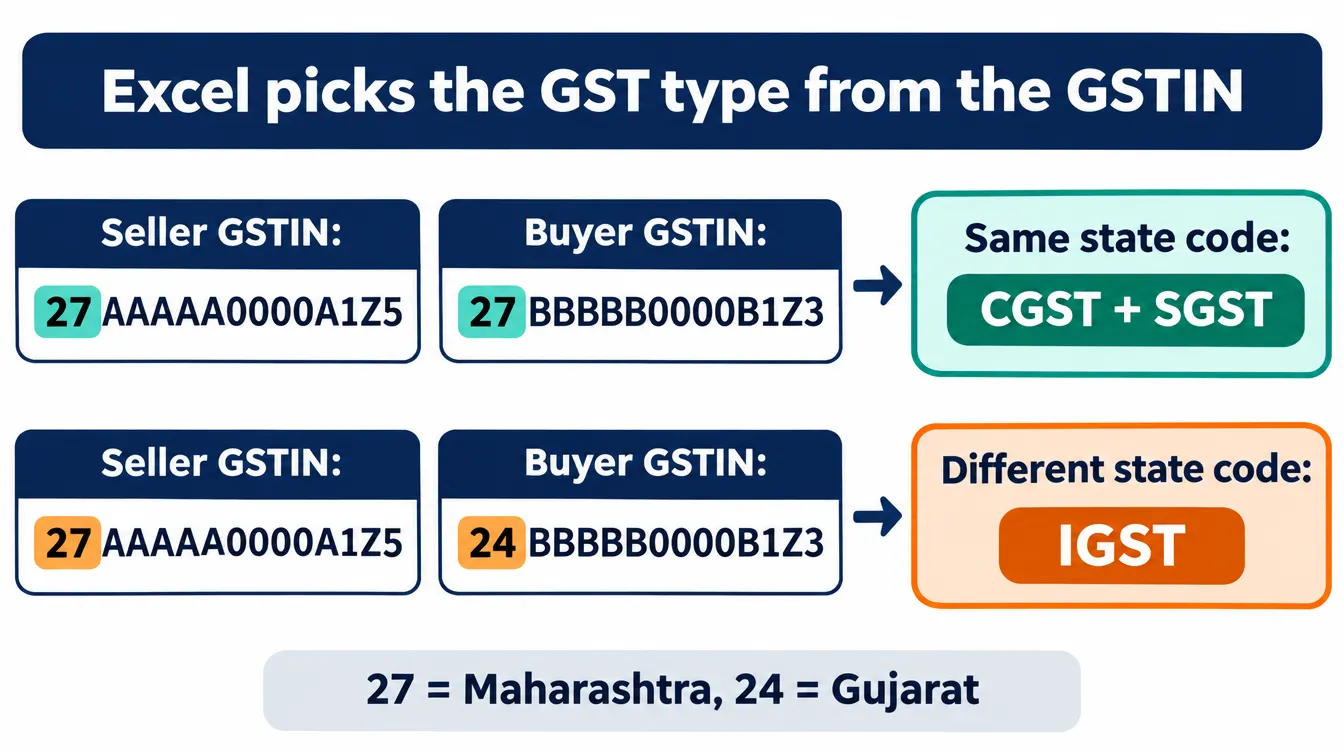
- Excel can choose CGST + SGST or IGST by comparing the first two digits of the seller's GSTIN with the buyer's state code (27 is Maharashtra, 24 is Gujarat).
- A 0-to-99 words table lets one formula write the amount in words in crore, lakh and thousand, up to ₹99 crore, with no VBA.
- The custom number format
[>=10000000]##\,##\,##\,##0.00;[>=100000]##\,##\,##0.00;##,##0.00shows 1,68,150.00 instead of 168,150.00. - Use GST rates of 5%, 18% or 40% for most goods since 22 September 2025; goods transport agencies charge 5% under reverse charge or 18% under forward charge.
Contents
- Free quotation format in Excel: download
- Quotation in Excel or Word?
- The 6-Formula Quotation Sheet
- How to make a quotation format in Excel (step by step)
- GST rules for an Excel quotation in 2026
- 8 sample quotation formats in Excel
- Track every quote: the Quote Tracker
- Common Excel quotation mistakes
- FAQ
Free Quotation Format in Excel: Download
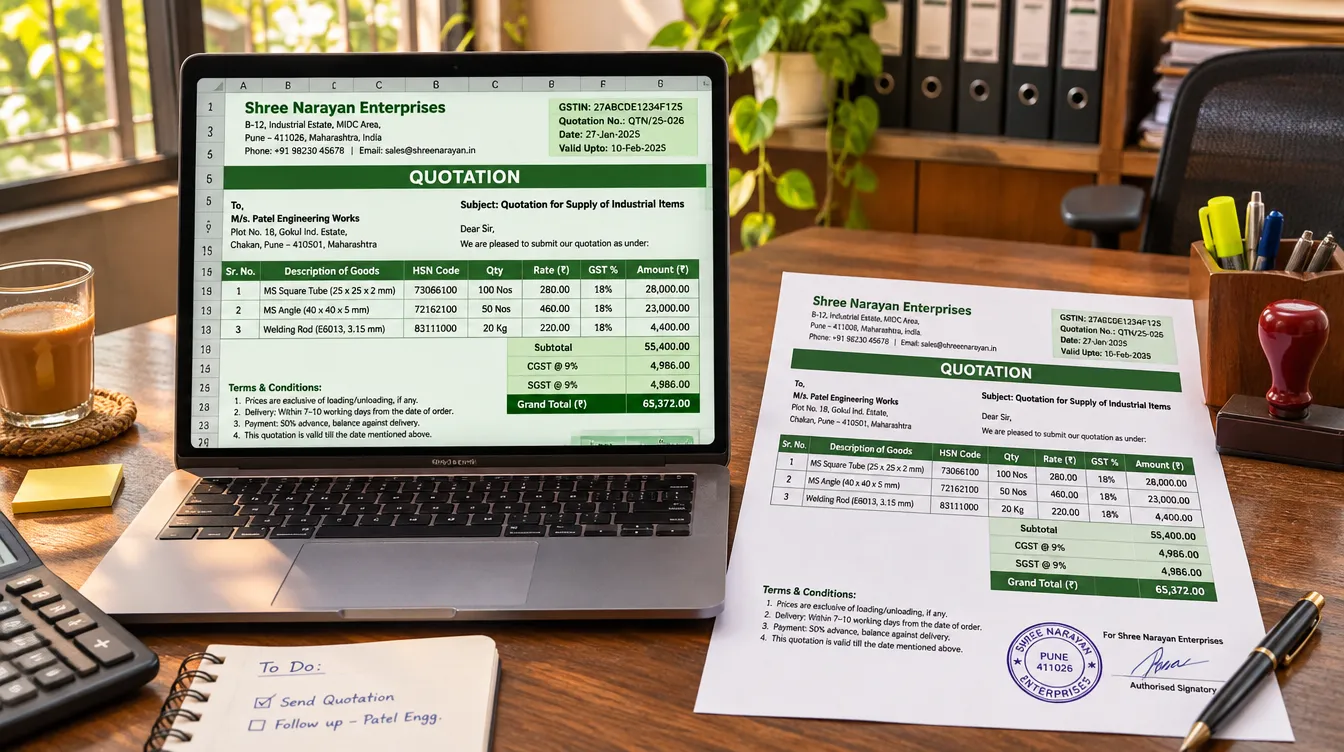
Download the free quotation format in Excel below: one workbook with 8 quotation templates, a Quote Tracker and an Items list, with the formulas already in place. Type in the item rows, your GSTIN and the buyer's details; the totals calculate themselves.
Download quotation-format-in-excel.xlsx (8 templates + tracker)
| # | Sheet | Best for |
|---|---|---|
| 1 | GST Quotation | Goods sellers charging GST; product dropdown, auto CGST/SGST or IGST, amount in words |
| 2 | Simple Quotation | Unregistered businesses and composition dealers, without GST |
| 3 | Construction BOQ | Civil contractors quoting by Cum, Sqft and Rmt, with section totals |
| 4 | Interior Quotation | Interior designers and modular kitchen firms, room-wise subtotals |
| 5 | Transport Quotation | Transporters and goods transport agencies, RCM or FCM switch |
| 6 | Service AMC Quotation | Maintenance contracts and repeat service visits with SAC codes |
| 7 | RFQ | Buyers asking vendors to quote |
| 8 | Comparison | Buyers picking the lowest (L1) vendor on landed cost |
| + | Quote Tracker | Follow-ups, expired quotes and conversion rate |
| + | Items | Your product list: name, HSN, unit, rate and GST % |
The GST Quotation sheet is built step by step in the guide below, so you can see how the product dropdown, the Items list and the amount-in-words line work. Each of the other sheets is covered in the samples section.
Quotation Format in Excel or Word: Which Should You Use?
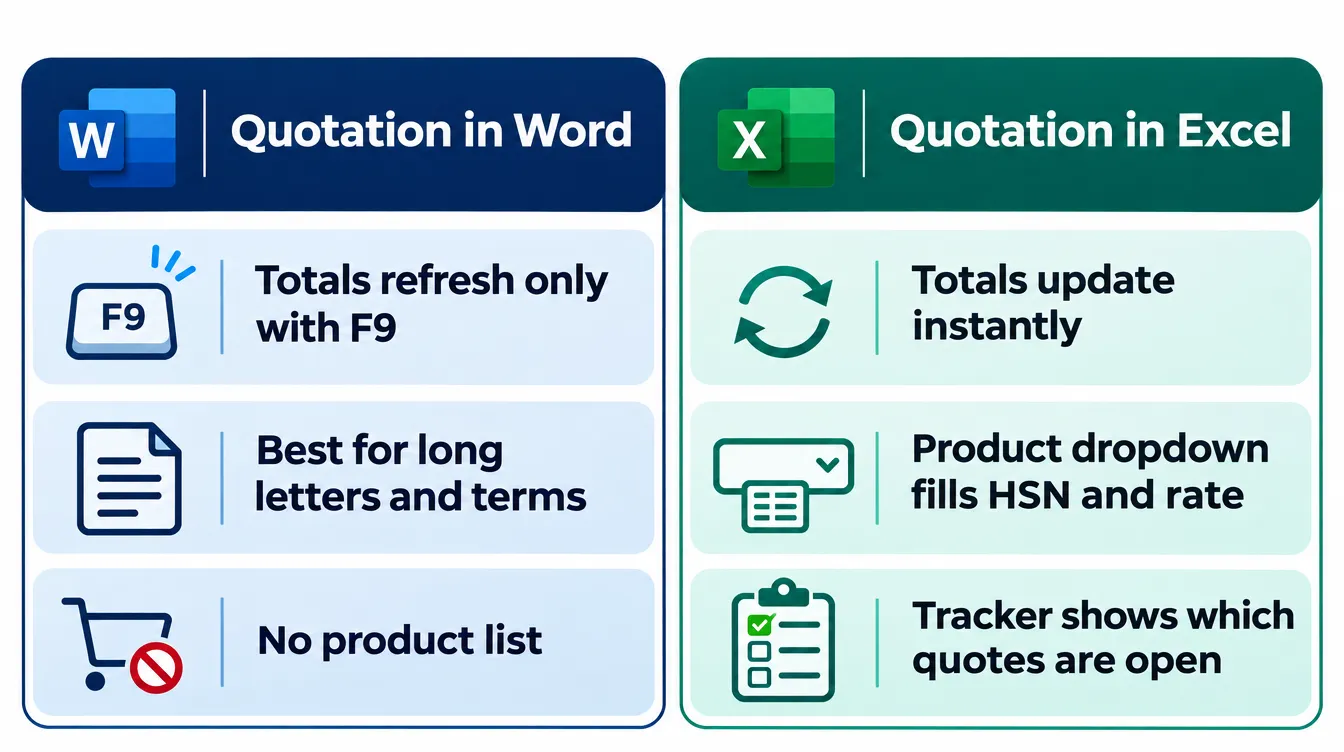
Use Excel when the quotation is mostly numbers (many line items, GST, discounts, repeat products), and Word when it is mostly text (a covering letter, long scope and terms). Excel recalculates the moment you change a quantity; Word table formulas only refresh when you press F9.
| Need | Excel | Word |
|---|---|---|
| Totals update as you type | Yes | Only after Ctrl+A, F9 |
| Pick items from a saved list | Yes, with a dropdown | No |
| Auto CGST/SGST or IGST | Yes, from the GSTINs | Manual |
| Amount in words | Formula (this guide) | Typed by hand |
| Long letter, scope, terms | Possible but awkward | Best |
| Track which quotes are open | Yes, in a tracker sheet | No |
If your quotes are letter-style, use our quotation format in Word, which also covers what a quotation is, when it becomes binding and the full terms library. This page focuses on what Excel does better.
The 6-Formula Quotation Sheet
The 6-Formula Quotation Sheet is the minimum set of formulas that turns an Excel table into a quotation that can't add up wrong: line amount, GST, tax type, grand total, valid-until date and amount in words. Every step below uses these six.
| # | What it does | Formula in the GST Quotation sheet |
|---|---|---|
| 1 | Line taxable value after discount | =IF(OR($B14="",$E14=""),0,ROUND($E14*$F14*(1-$G14/100),2)) |
| 2 | GST on the line | =IF($B14="",0,ROUND($H14*$I14/100,2)) |
| 3 | Tax type from the GSTINs | =IF(LEFT($B$3,2)=$G$9,"CGST + SGST","IGST") |
| 4 | Grand total, rounded to the rupee | =ROUND(SUM(K25:K29),0) |
| 5 | Valid-until date | =B8+B9 (quote date + validity days) |
| 6 | Amount in words, Indian numbering | One formula using a 0-99 words table (step 8) |
Two details matter. Rounding each line with ROUND stops paise-level differences between your quote and the invoice. And the IF wrappers keep empty rows at zero instead of showing errors.
How to Make a Quotation Format in Excel (Step by Step)
You can build a GST quotation format in Excel in about 20 minutes: set up an Items list, add a dropdown, pull HSN, rate and GST with INDEX and MATCH, calculate each line, let the GSTINs pick the tax type, and add totals, amount in words and an Indian number format. The steps below build the GST quotation sheet from scratch.
Step 1: Build an Items list
Create a sheet named Items with five columns: Item name, HSN/SAC, Unit, Rate and GST %. This is your price list; update a rate here once and every new quote picks it up.
Restrict the GST % column to valid slabs: select E2:E100, then Data > Data Validation > List, and type 0,5,18,40. That blocks the old 12% and 28% slabs by mistake.
Step 2: Add a header block
Put your legal name, address and GSTIN at the top, then the quotation number, date, validity days and buyer details. In the layout used here, your GSTIN sits in B3, the date in B8, validity days in B9, the buyer's GSTIN in G8 and the place-of-supply state code in G9.
G9 fills itself from the buyer's GSTIN with =IF(LEN(G8)>=2,LEFT(G8,2),""). Overtype it when goods go to a different state than the buyer's registration.
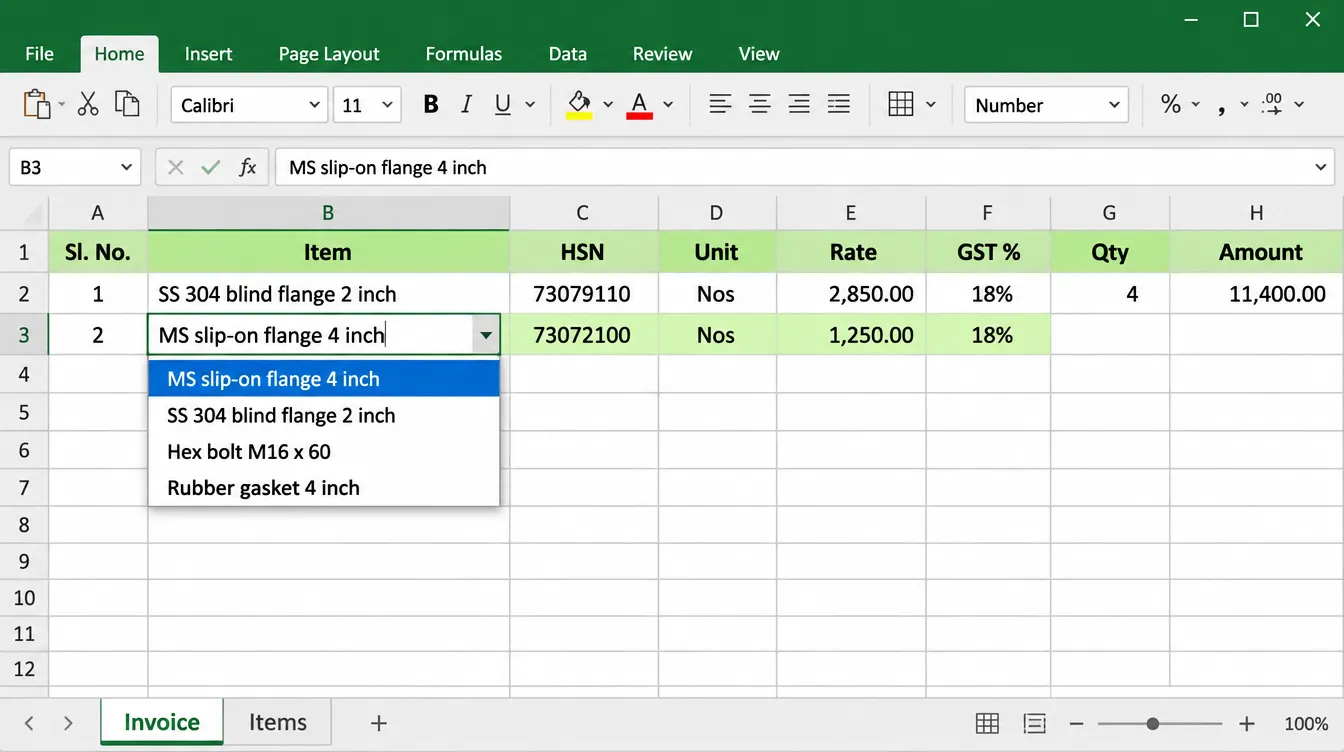
Step 3: Add a product dropdown
Select the Item column of your quotation table (B14:B23), then Data > Data Validation > List, and set the source to =Items!$A$2:$A$100. Now each row offers your product list instead of free typing, so names always match.
Step 4: Pull HSN, unit, rate and GST with INDEX and MATCH
In the HSN cell type =IF($B14="","",INDEX(Items!$B$2:$B$100,MATCH($B14,Items!$A$2:$A$100,0))), and repeat with columns C, D and E of the Items sheet for unit, rate and GST %. The final 0 in MATCH forces an exact match.
Why not XLOOKUP? It is simpler, but it only exists in Microsoft 365 and Excel 2021 or later, not Excel 2019 or 2016 (Office Watch).
A quotation built with XLOOKUP shows #NAME? on a customer's or colleague's older Excel. INDEX and MATCH work everywhere, including Google Sheets.
Step 5: Calculate each line
Taxable value: =IF(OR($B14="",$E14=""),0,ROUND($E14*$F14*(1-$G14/100),2)). GST: =IF($B14="",0,ROUND($H14*$I14/100,2)). Amount: =H14+J14.
Columns are E Qty, F Rate, G Disc %, H Taxable, I GST %, J GST, K Amount.
GST is charged on the value after a discount shown on the quotation and invoice, which is why discount comes before tax here.
Step 6: Let Excel pick CGST + SGST or IGST
In B11 type =IF(LEFT($B$3,2)=$G$9,"CGST + SGST","IGST"). The first two digits of a GSTIN are the state code, so the same code means an intra-state supply and a different code means inter-state.
Then the totals:
- CGST:
=IF($B$11="CGST + SGST",ROUND(SUM(J14:J23)/2,2),0), and the same for SGST. - IGST:
=IF($B$11="IGST",SUM(J14:J23),0).
Here is the worked example: a Pune manufacturer quoting a buyer in Gujarat.
| Line | Qty | Rate | Disc | Taxable value |
|---|---|---|---|---|
| MS slip-on flange 4 inch (HSN 7307) | 200 | ₹450 | 5% | ₹85,500 |
| SS 304 blind flange 2 inch (HSN 7307) | 50 | ₹1,200 | 5% | ₹57,000 |
| Taxable value | ₹1,42,500 | |||
| Buyer GSTIN 24... (Gujarat): IGST 18% | ₹25,650 | |||
| Grand total | ₹1,68,150 |
Change the buyer's GSTIN to one starting with 27 and the sheet switches to CGST ₹12,825 + SGST ₹12,825, with the same total.
Step 7: Add freight, round-off and grand total
Grand total: =ROUND(SUM(K25:K29),0), where K25:K29 hold taxable value, CGST, SGST, IGST and freight. Round off: =K31-SUM(K25:K29). Showing the round-off line makes the rupee rounding visible instead of hiding it.
Step 8: Write the amount in words without a macro
Excel has no built-in function for amounts in words, and the usual fix is a VBA macro, which many offices block. The approach here uses a sheet named Words that holds the words for 0 to 99, and one formula that splits the total into crore, lakh, thousand, hundred and the rest.
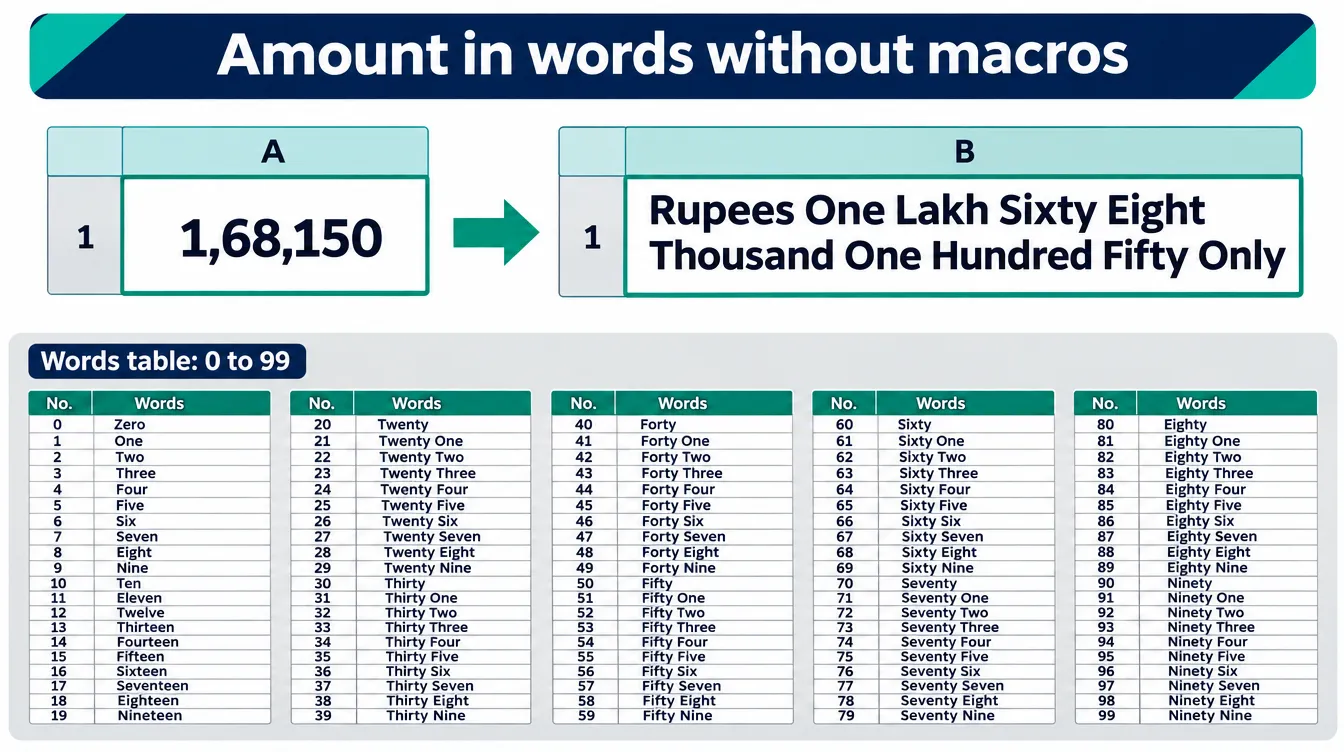
To build it yourself: on a sheet named Words, leave A1 blank and type the words for 1 to 99 in A2 to A100 (A2 "One", A21 "Twenty", A22 "Twenty One" and so on). Then paste this, where K31 is the grand total:
="Rupees "&TRIM(IF(INT(INT(K31)/10000000)>0,INDEX(Words!$A$1:$A$100,INT(INT(K31)/10000000)+1)&" Crore ","")&IF(INT(MOD(INT(K31),10000000)/100000)>0,INDEX(Words!$A$1:$A$100,INT(MOD(INT(K31),10000000)/100000)+1)&" Lakh ","")&IF(INT(MOD(INT(K31),100000)/1000)>0,INDEX(Words!$A$1:$A$100,INT(MOD(INT(K31),100000)/1000)+1)&" Thousand ","")&IF(INT(MOD(INT(K31),1000)/100)>0,INDEX(Words!$A$1:$A$100,INT(MOD(INT(K31),1000)/100)+1)&" Hundred ","")&IF(MOD(INT(K31),100)>0,INDEX(Words!$A$1:$A$100,MOD(INT(K31),100)+1),""))&IF(ROUND((K31-INT(K31))*100,0)>0," and "&INDEX(Words!$A$1:$A$100,ROUND((K31-INT(K31))*100,0)+1)&" Paise","")&" Only"The expected output for these amounts is:
| Amount | Result |
|---|---|
| 1,68,150 | Rupees One Lakh Sixty Eight Thousand One Hundred Fifty Only |
| 10,00,000 | Rupees Ten Lakh Only |
| 1,23,45,678.50 | Rupees One Crore Twenty Three Lakh Forty Five Thousand Six Hundred Seventy Eight and Fifty Paise Only |
| 9,99,99,999 | Rupees Nine Crore Ninety Nine Lakh Ninety Nine Thousand Nine Hundred Ninety Nine Only |
| 101 | Rupees One Hundred One Only |
It handles amounts up to ₹99,99,99,999 (just under 100 crore), which covers almost every SME quotation. Check the result on your own sheet before you send your first quote.
Step 9: Show amounts in lakh and crore
Select the amount cells, press Ctrl+1, choose Custom and enter the format below. Excel then shows 1,68,150.00 and 1,23,45,678.00 instead of the Western 168,150.00.
[>=10000000]##\,##\,##\,##0.00;[>=100000]##\,##\,##0.00;##,##0.00
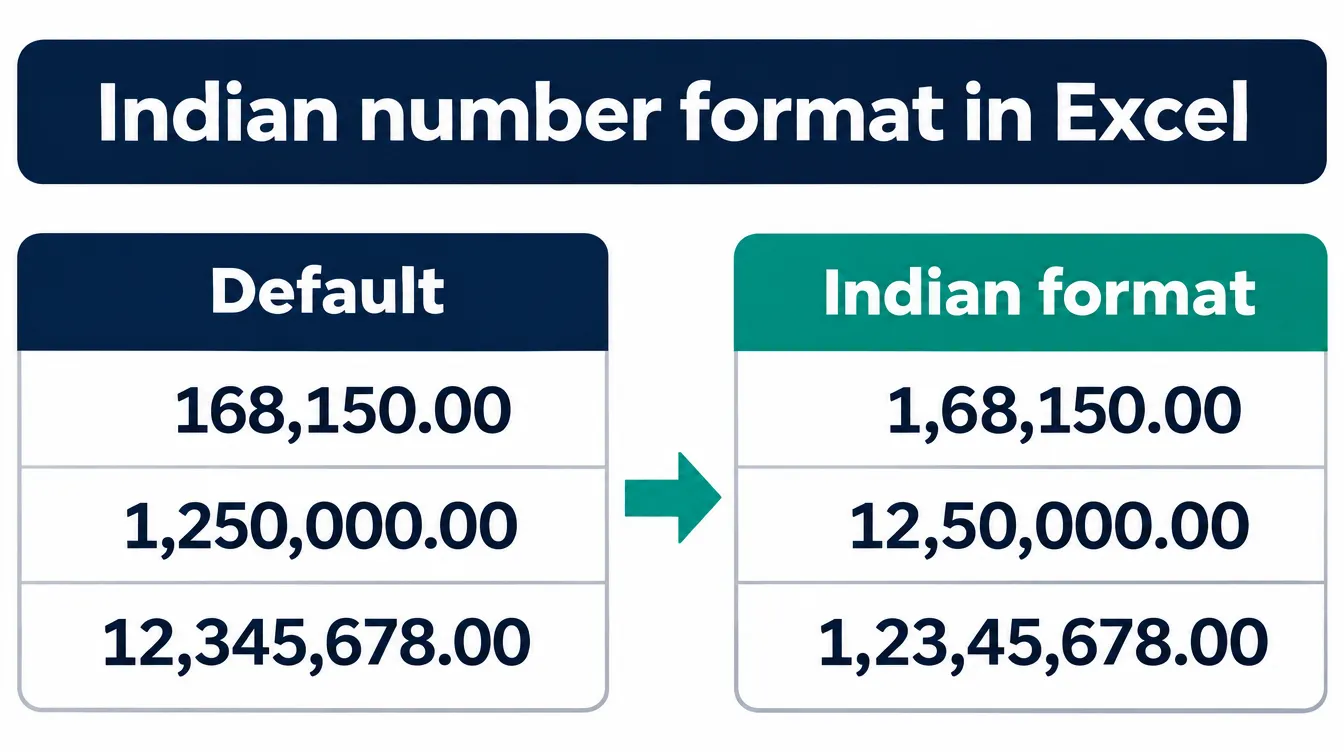
Why the conditions? The shorter code ##\,##\,##\,##0 puts extra commas on small numbers, so 12345 shows as ,,12,345, as a Microsoft Tech Community answer points out.
Custom formats allow only two conditions, as Chandoo's forum notes, which is exactly what crore and lakh need. The alternative is the Currency format with the English (India) symbol, explained by ExcelDemy.
Use the custom format on positive amounts; keep the round-off cell as 0.00 so negatives show correctly.
Step 10: Print on one page and send as PDF
Page Layout > Print Area > Set Print Area, then Page Setup > Fit to 1 page wide, and File > Save As > PDF. Send the PDF, not the .xlsx: a buyer can edit a spreadsheet, and formulas may break on their phone.
Save your finished layout as an Excel template (.xltx) so every new quote opens as a fresh copy.
GST Rules for a GST Quotation Format in Excel in 2026
A quotation is not a GST document, but quoting the right rate and split avoids re-quoting when the invoice is raised. Three 2025 changes matter for Excel templates; our Word quotation guide covers the HSN-digit and composition rules in detail.
| Rule | What to set in your Excel quotation | Source |
|---|---|---|
| Main slabs are 5% and 18%, with 40% for luxury and sin goods, from 22 September 2025 | GST % dropdown limited to 0, 5, 18, 40 | Busy GST reforms timeline |
| Goods transport agency (GTA): 5% under reverse charge or 18% under forward charge | Transport sheet has an RCM/FCM switch | StudyCafe, CA Guruji |
| Works contracts for government earthwork moved from 12% to 18% | Construction BOQ defaults to 18%; confirm concessional cases | StudyCafe, TaxGuru |
| Rate follows time of supply, not the quote date | Add "GST as applicable at the time of supply" | PIB FAQ |
On slabs: the 56th GST Council's reform took effect on 22 September 2025, with the structure now centred on 5% and 18% plus 40% for select luxury and demerit goods (Busy).
On transport: a GTA must choose each year between forward charge at 18% and reverse charge at 5%, and before 22 September 2025 the forward charge rate was 12% (StudyCafe). Under reverse charge the GTA doesn't add GST to its quote; the registered recipient pays it (CA Guruji).
On construction: composite works contracts involving predominantly earthwork for the government, and sub-contracts under them, moved from 12% to 18% with ITC (StudyCafe; TaxGuru). The government's FAQ adds that the rate depends on the timing of supply, invoice and payment around a change, not on when you quoted (PIB).
8 Sample Quotation Formats in Excel
Each sample below shows what a quotation for that case needs and the one formula that makes it different. Each one is a sheet in the download above.
1. GST Quotation Format in Excel (Goods)
When to use: Any GST-registered seller of goods: manufacturers, traders, distributors.
Columns: Sr, Item (dropdown), HSN, Unit, Qty, Rate, Disc %, Taxable, GST %, GST, Amount.
What it does: everything in the 10 steps above: product lookup, auto CGST/SGST or IGST, freight, round-off, amount in words, Indian number format, valid-until date and standard terms.
2. Simple Quotation Format in Excel (Without GST)
When to use: Businesses not registered under GST, and composition dealers, who cannot collect tax and should add the line "Composition taxable person, not eligible to collect tax on supplies."
Columns: Sr, Description, Qty, Rate, Amount. Key formula: =IF(OR(C13="",D13=""),0,ROUND(C13*D13,2)), total rounded with ROUND, and amount in words.
3. Construction Quotation Format in Excel (Civil Work BOQ)
When to use: Civil contractors, builders and renovation firms quoting a bill of quantities.
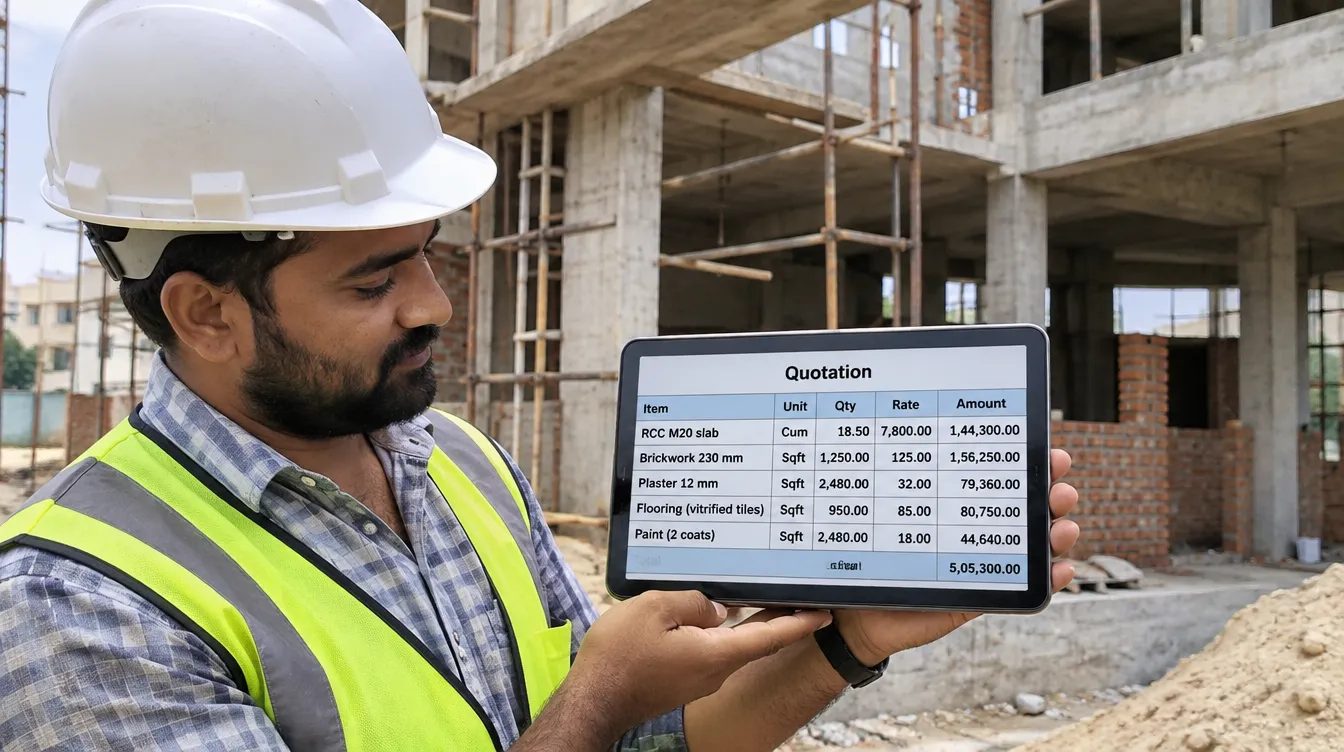
Columns: Section, Item description, Unit (Cum, Sqft, Rmt, Nos), Qty, Rate, Amount.
Key formula: a section summary with =SUMIF($A$13:$A$32,A42,$F$13:$F$32), so the client sees Civil, Masonry and Finishing totals separately.
In the worked example, the BOQ totals ₹10,82,000 before GST: Civil ₹5,22,600, Masonry ₹2,28,000 and Finishing ₹3,31,400, plus 18% GST of ₹1,94,760 for a grand total of ₹12,76,760. GST on a works contract is set at 18% by default. Terms cover billing on actual measurement and a retention percentage.
4. Interior Quotation Format in Excel
When to use: Interior designers, modular kitchen and furniture firms.

Columns: Room, Item, Material / finish, Unit (Rft, Sqft, Nos), Qty, Rate, Amount. Key formula: room-wise SUMIF summary (Kitchen, Master Bedroom, Living Room). Writing the material, such as "BWP ply 18 mm, 1 mm laminate", next to each line is what stops "that's not what we agreed" at handover.
5. Transport Quotation Format in Excel
When to use: Transporters, fleet owners and goods transport agencies quoting per trip.
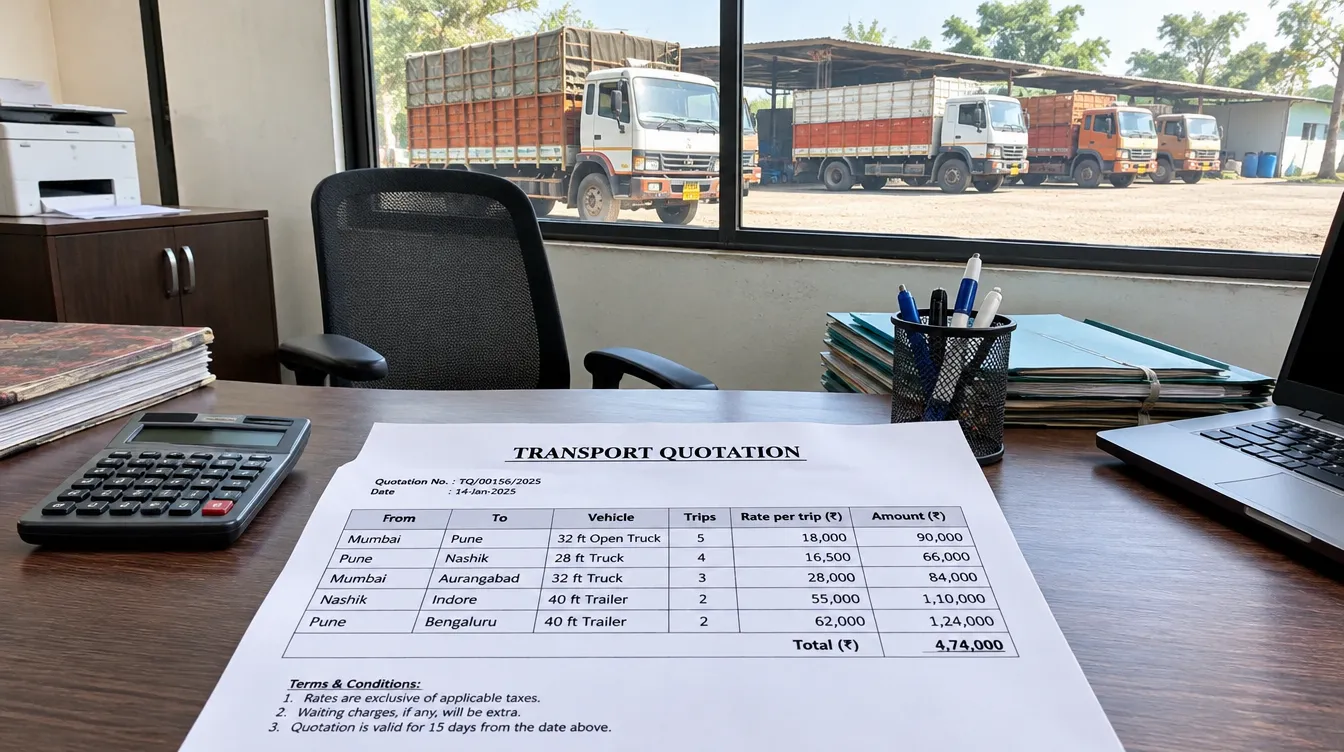
Columns: From, To, Vehicle, Trips, Rate per trip, Amount. Key formula: the GST % cell reads the dropdown in B10: =IF(LEFT($B$10,3)="RCM",0,18), so an RCM quote shows no GST and an FCM quote adds 18%. Terms cover toll, detention charges and transit insurance.
6. Service and AMC Quotation Format in Excel
When to use: Annual maintenance contracts, repair services, facility services.
Columns: Sr, Service, SAC code, Units / visits, Rate, Amount, with GST at 18% as the editable default. Example: quarterly preventive maintenance of a CNC machine under SAC 998717. Terms cover contract period, spares and response time.
7. Request for Quotation Format in Excel (RFQ)
When to use: You are the buyer and want comparable quotes from 3 or more vendors.
Columns: Sr, Item, Specification / drawing, Qty, Unit, Required by, Vendor's rate. The footer asks vendors to quote rate, HSN, GST %, freight, payment terms, delivery period and validity, which is what makes the next sheet possible. Once you place the order, move to a purchase order format.
8. Comparative Statement of Quotations in Excel
When to use: Picking the lowest (L1) vendor from several quotes, and showing management why.
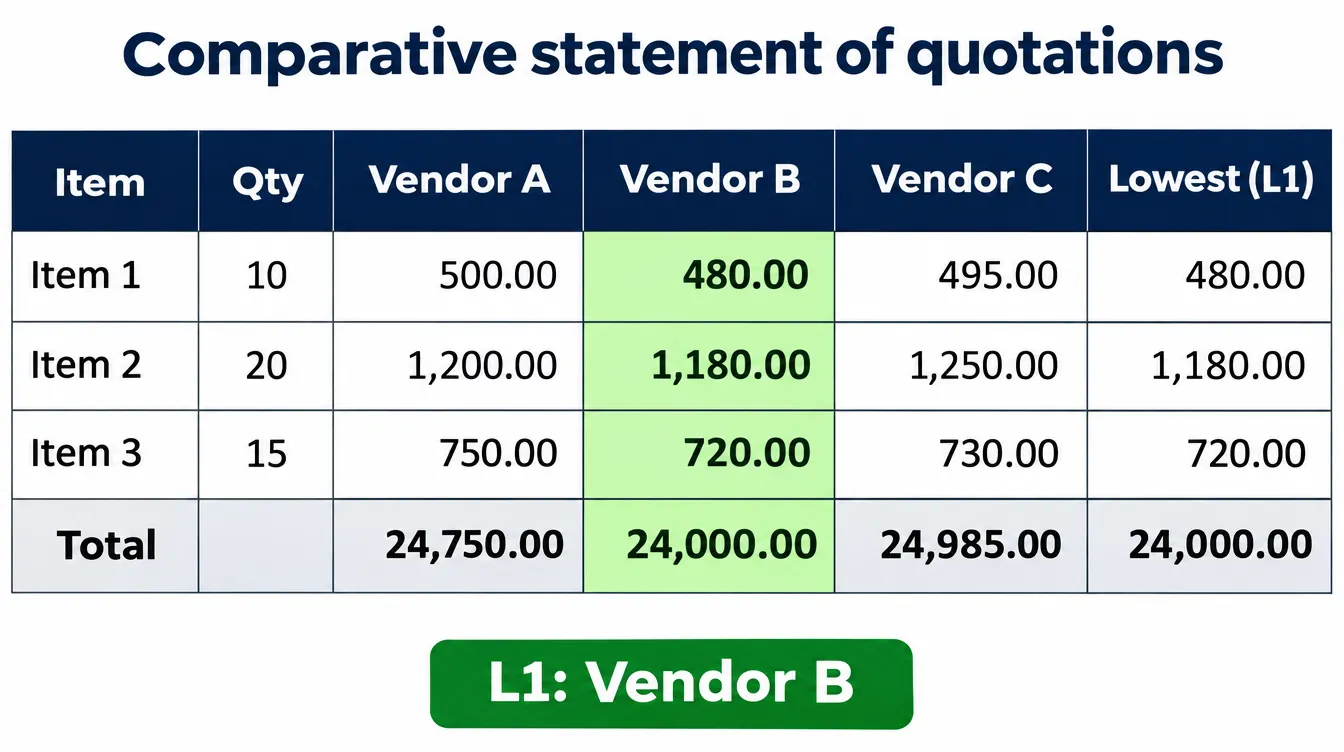
Key formulas:
- Lowest rate per item:
=IF(COUNT(C5:E5)=0,"",MIN(C5:E5)) - Which vendor:
=IF(F5="","",INDEX($C$4:$E$4,MATCH(F5,C5:E5,0))) - Total landed cost per vendor:
=ROUND(C16*(1+C17/100)+C18,0)(basic value plus GST plus freight) - Overall L1:
=INDEX($C$4:$E$4,MATCH(MIN(C19:E19),C19:E19,0))
In the example, Vendor B comes out L1 on landed cost at ₹2,18,260, against ₹2,18,300 for Vendor C, even after ₹3,500 freight. Vendor C wins bright bar and Vendor B wins plate and bolts. Rows for payment terms and delivery days sit underneath, because the cheapest quote isn't always the best one.
Track Every Quote: the Quote Tracker Sheet
The Quote Tracker logs every quotation with amount, valid-until date, follow-up date and status (Open, Won, Lost, Expired), then calculates days left, open value and your conversion rate. Most quotations are lost to silence, not to price, so the follow-up date is the most important column.
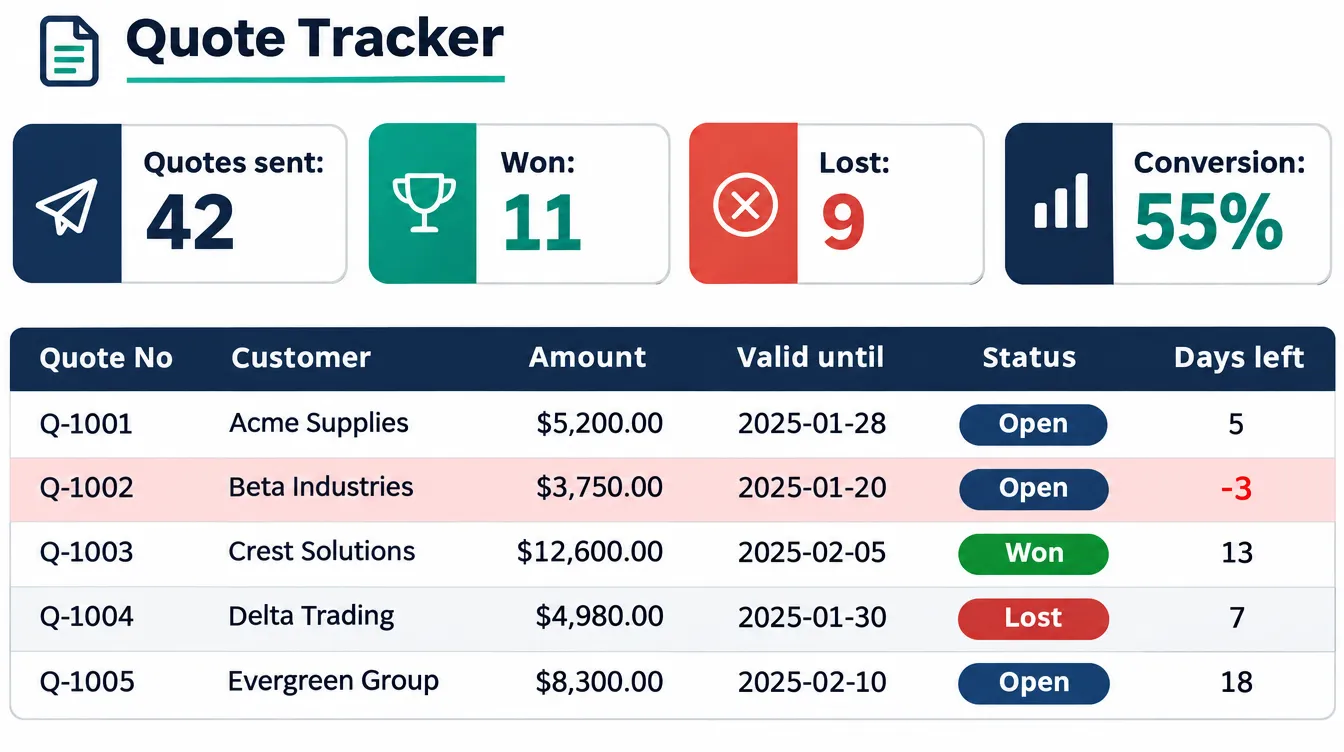
| Metric | Formula |
|---|---|
| Days left on an open quote | =IF(OR(A7="",H7<>"Open"),"",F7-$B$2) where B2 is =TODAY() |
| Won | =COUNTIF(H7:H506,"Won") |
| Conversion rate (won / decided) | =IF(D3+F3=0,0,D3/(D3+F3)) |
| Value won | =SUMIF(H7:H506,"Won",E7:E506) |
| Open pipeline value | =SUMIF(H7:H506,"Open",E7:E506) |
Conditional formatting colours the rows: red for an open quote past its valid-until date, yellow when the follow-up date has arrived, green for won. We calculate conversion as won divided by decided quotes (won plus lost), so quotes still open don't drag the rate down.
Common Mistakes in a Quotation Made in Excel
Most Excel quotation errors come from one of three things: a typed number where a formula should be, a lookup that silently returns the wrong row, or a file sent in a form the buyer can edit.
| Mistake | What happens | Fix |
|---|---|---|
| Typing totals instead of using formulas | Change a quantity and the total stays old | Every amount is a formula; inputs only in input cells |
| VLOOKUP without FALSE as the last argument | Approximate match returns a neighbouring item's rate | Use INDEX/MATCH with 0, or VLOOKUP(...,FALSE) |
| XLOOKUP in a shared template | #NAME? on Excel 2019 or 2016 | INDEX and MATCH |
##\,##\,##\,##0 as the Indian format | Small numbers show stray commas (,,12,345) | Use the two-condition format in Step 9 |
| No ROUND on line GST | Paise differences between quote and invoice | ROUND each line to 2 decimals, total to 0 |
| 12% or 28% still in the GST list | Wrong total and a re-quote | Validation list 0, 5, 18, 40 |
| Same GST type for every buyer | CGST + SGST on an inter-state quote | Tax type from GSTIN state codes |
| Sending the .xlsx | Buyer edits rates; formulas break on mobile | Send a PDF; keep the .xlsx |
| No follow-up date | Quote expires unnoticed | Log it in the Quote Tracker |
When an Excel Quotation Stops Working
An Excel quotation works until several salespeople quote from their own copies, with their own rates, and nobody can see which quotes are waiting for a call. At that point the problem isn't the format; it's the follow-up.
Mera Udyog keeps leads, the product catalog, quotations, sales orders and invoices in one app, built for manufacturing units and multi-outlet retail chains. Its sales CRM includes SIM-based call tracking, so a manager can see whether the follow-up call on an open quote actually happened.
After the order, goods often move with a delivery challan format before the invoice. See all our free business templates.
Send Your Next Quotation in 5 Minutes
Download a quotation format in Excel, put your products in the Items sheet once, and every new quote is a few dropdown picks away. Check the buyer's GSTIN, let the sheet pick the tax type, save as PDF and log the quote in the tracker with a follow-up date.
If your team sends more quotes than a tracker sheet can manage, try Mera Udyog free for 7 days.
Start 7-Day Free Trial · Book a Free Demo · See pricing
These templates are general information, not legal or tax advice. Confirm HSN or SAC codes, GST rates and terms with your CA.
FAQ: Quotation Format in Excel
How do I make a quotation format in Excel?
Create an Items sheet with item name, HSN, unit, rate and GST %. On the quotation sheet add a dropdown for items, pull HSN and rate with INDEX and MATCH, calculate each line with ROUND(Qty x Rate x (1 - Discount/100),2), add GST, pick CGST plus SGST or IGST from the GSTIN state codes, and total with =ROUND(SUM(...),0).
What is the GST formula for a quotation in Excel?
Line GST is =ROUND(Taxable*GST%/100,2). For an intra-state quote, CGST and SGST are each half of the total GST; for an inter-state quote, IGST is the full amount. Use =IF(LEFT(seller GSTIN,2)=buyer state code,"CGST + SGST","IGST") to decide which applies.
How do I write the amount in words in Excel in rupees?
Excel has no built-in function for this. Without a macro, keep the words for 0 to 99 in a helper sheet and use one formula that splits the amount into crore, lakh, thousand, hundred and the remainder, as given in Step 8 on this page.
How do I show lakh and crore commas in Excel?
Select the cells, press Ctrl+1, choose Custom and enter [>=10000000]##\,##\,##\,##0.00;[>=100000]##\,##\,##0.00;##,##0.00. Excel will show 1,68,150.00 instead of 168,150.00.
Does this quotation format in Excel work in Google Sheets?
The formulas in this guide use INDEX, MATCH, SUMIF, ROUND and IF, which work in Google Sheets, Excel 2010 or later and LibreOffice. They avoid XLOOKUP, which is missing from Excel 2019 and earlier.
What GST rate should a transport quotation show?
A goods transport agency either quotes without GST under reverse charge, where the registered recipient pays 5%, or charges 18% under forward charge if it has opted for it for the year. The transport layout in the samples section shows a switch for both.
What is a comparative statement of quotations?
It is a table that compares rates from several vendors for the same items, finds the lowest rate per item and the lowest total landed cost (L1 vendor), and records payment and delivery terms. Step 8 of the comparison sample shows the formulas that pick the L1 vendor automatically.
Can I download a quotation format in Excel for free?
Yes. The download is one free workbook with eight quotation sheets (GST, simple, construction BOQ, interior, transport, service AMC, RFQ and comparison), a Quote Tracker and an Items list.
About the Author
By Mera Udyog Team. Questions about this quotation format in Excel or the 6-Formula Quotation Sheet? Write to hello@meraudyog.com.
Sources
- Xlookup is available in Excel 365 and Excel 2021, Office Watch
- Indian number format: extra commas with ##\,##\,##\,##0, Microsoft Tech Community, 2021
- Formatting numbers in Indian style: two-condition limit, Chandoo.org forum
- How to change comma in Excel to Indian style, ExcelDemy
- GST Reforms Timeline 2025-26, Busy, August 2026
- GST on GTA: RCM 5% and FCM 18%, StudyCafe, 2025
- GST on GTA services and reverse charge, CA Guruji Classes, 2025
- GST overhaul 2025: full list of service rate changes, StudyCafe, 2025
- FAQs on GST rate changes from 22 September 2025, PIB, September 2025
- Quotation format in Excel with GST, Taskip, October 2026
- 56th GST Council: rate changes incl. works contract, TaxGuru, September 2025